One workspace for every client — instead of a board per project.
For coaches, designers, freelancers, small schools and volunteer groups — anyone who works with people: win clients, run the work and keep every client in the loop — in one calm place that is free to start and grows with you.
Pages, lead form, booking, boards, reports and AI — all included on Free.
panel.beebrand.us
New bookingIntro call · Thu 2:00 PM · Zoom link sent
New lead · high viabilityA café group with three locations
All sections greenLumen Bakery · status updated
Built for the one-person business
You bring the skills. BeeBrand brings the back office.
When you work for yourself, you are also your own receptionist, project manager and account manager. BeeBrand takes those jobs off your desk, so the hours go to your clients — and they notice.
Clients book, enquire and get answers without an email chain
Every client has one place for their work, files and chat
Status and reports that write themselves, ready to share
Come on in
Made for people who work with people
Pick your door — each one leads to a real way of running your business on BeeBrand.
Most people starting out glue this together from seven tools. In BeeBrand it is one path.
1
Get found
Publish your own pages at pages.beebrand.us — drag-and-drop, six themes, no code — with your lead form and booking link on them.
PagesThemesPage analytics
2
Capture
A visitor sends your lead form, or books a free slot in your calendar. The meeting lands there with your Zoom link already in it.
Lead formBooking pageZoom link
3
Qualify
AI looks up who is writing — company, industry, size — and rates whether they are a good fit. The good ones become tasks in one click.
Lead researchConvert to task
4
Onboard
Create the client's space, invite them into their own chat, share the first documents and set a starting status.
Client spacesGuest chatDocuments
5
Deliver
Plan on the board, watch due dates and progress, keep the calendar, talk in chat — every client separate, all of them in one list.
KanbanEisenhower listCalendar
6
Report
Traffic lights keep you honest; an AI summary writes the paragraph. Publish a report page and send the client a link.
Status lightsReport pagesPDF export
7
Grow
Start free. Pay two dollars per client when you outgrow two. Move to Studio when you pass ten.
FreeFlexStudio plans
A look inside
What a working week looks like
Screens from a demo workspace — a small brand studio with five clients.
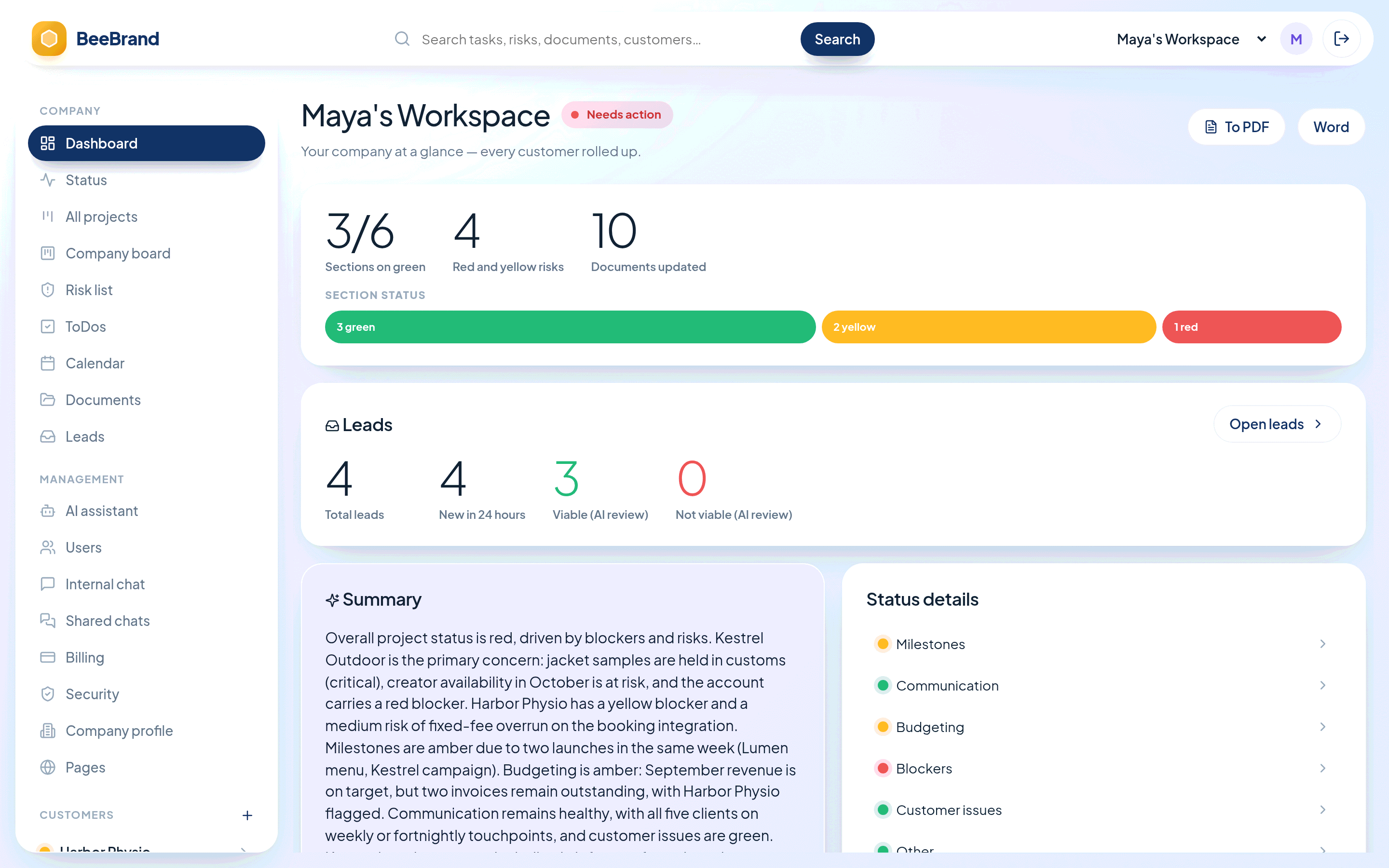
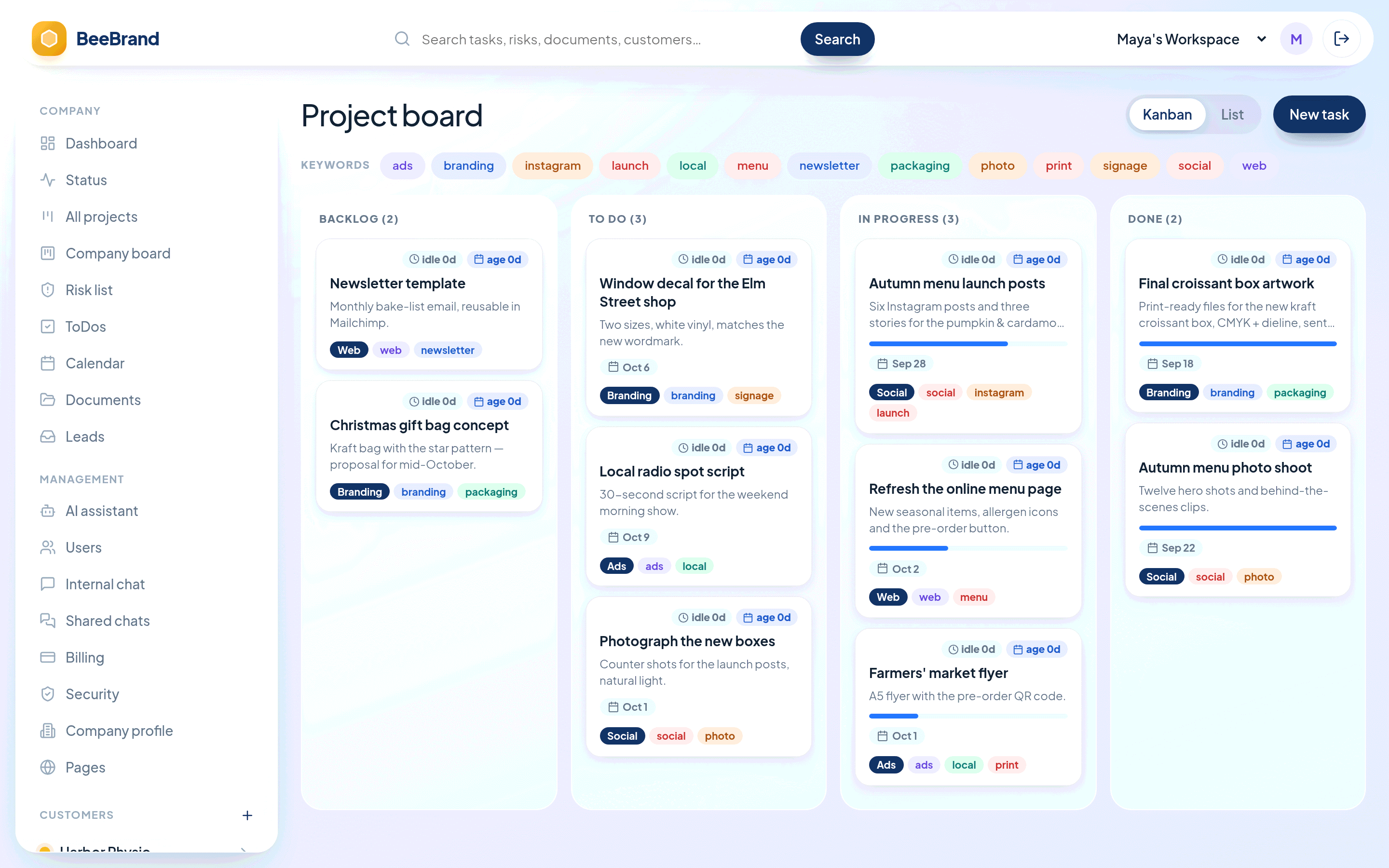
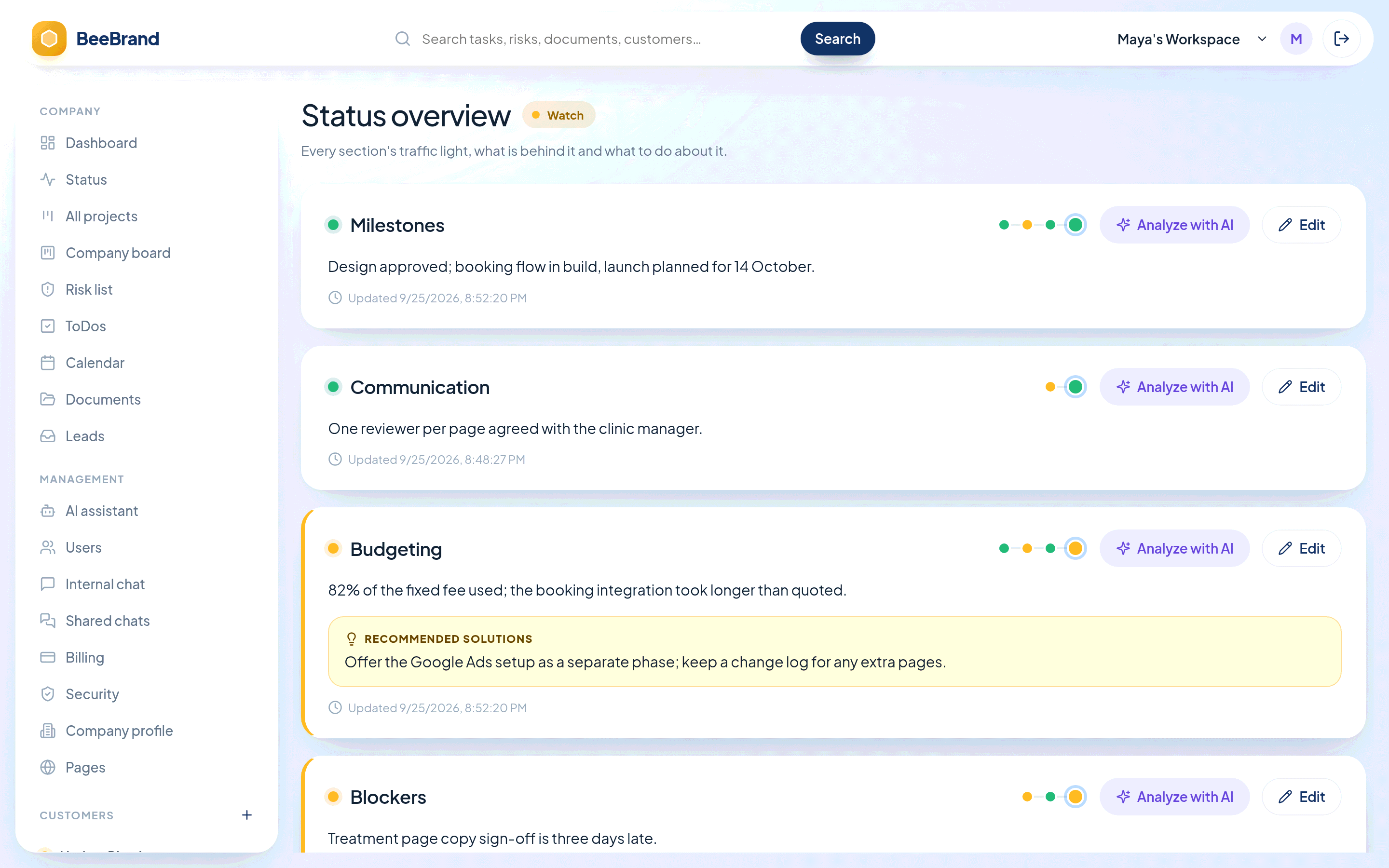
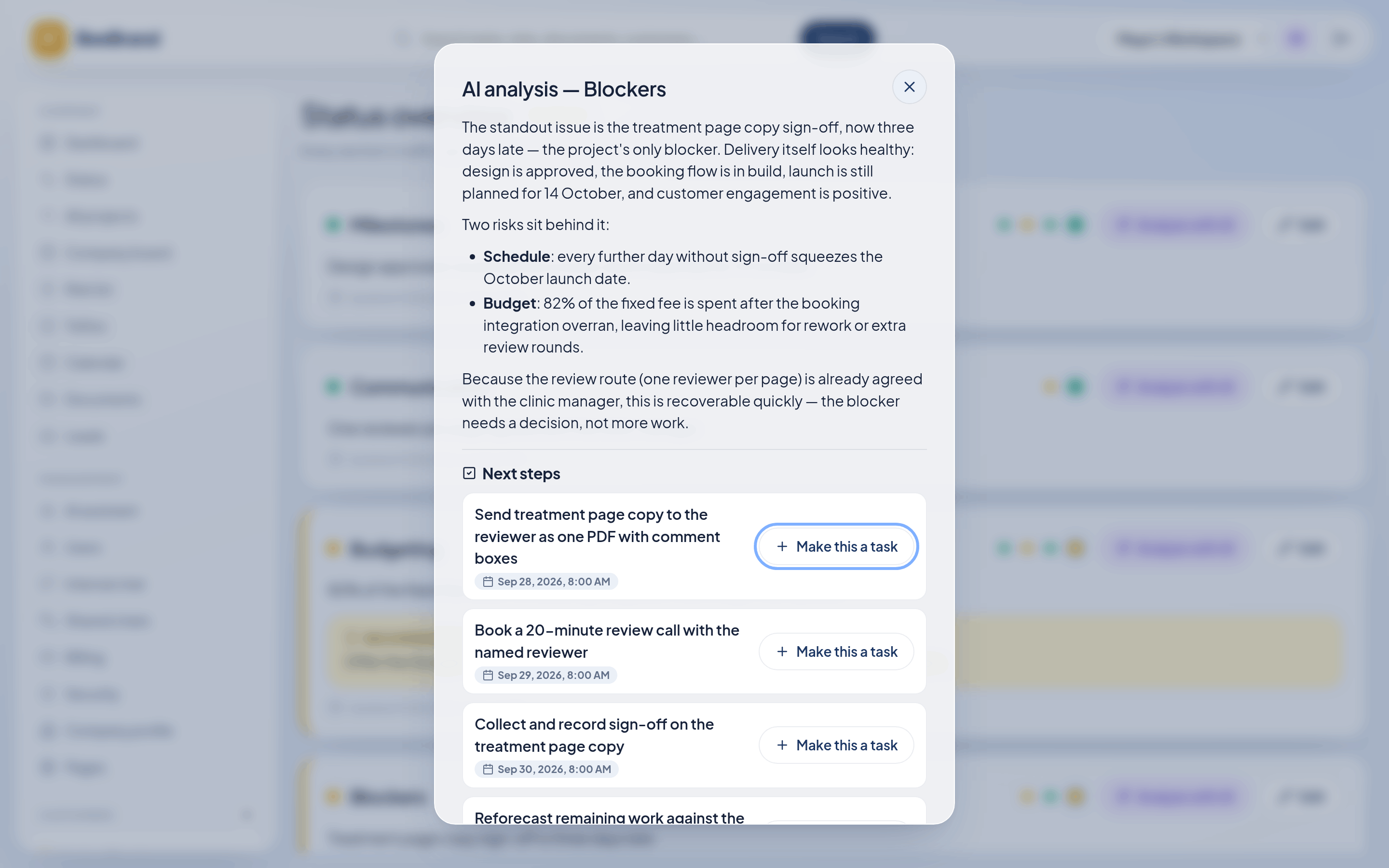
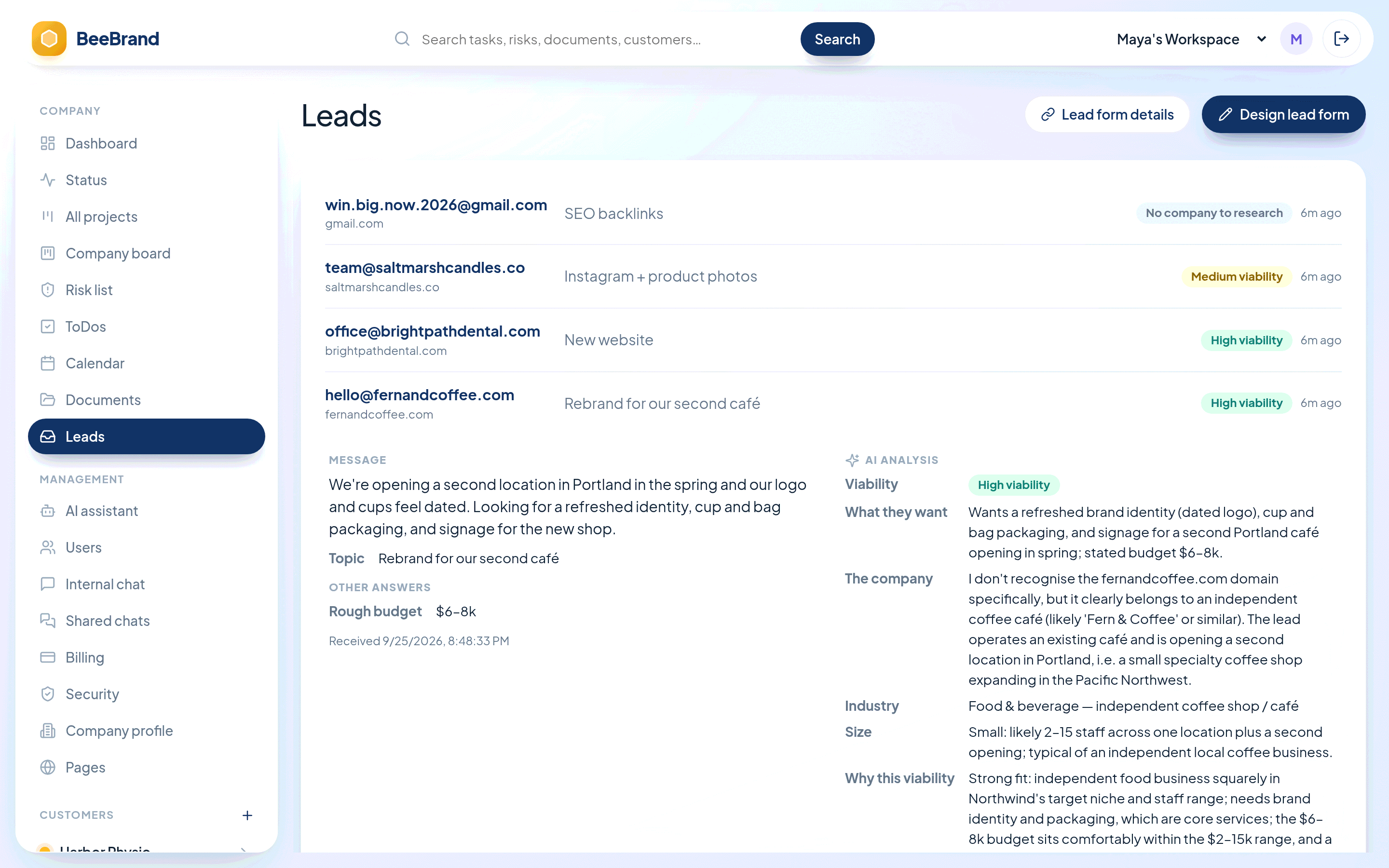
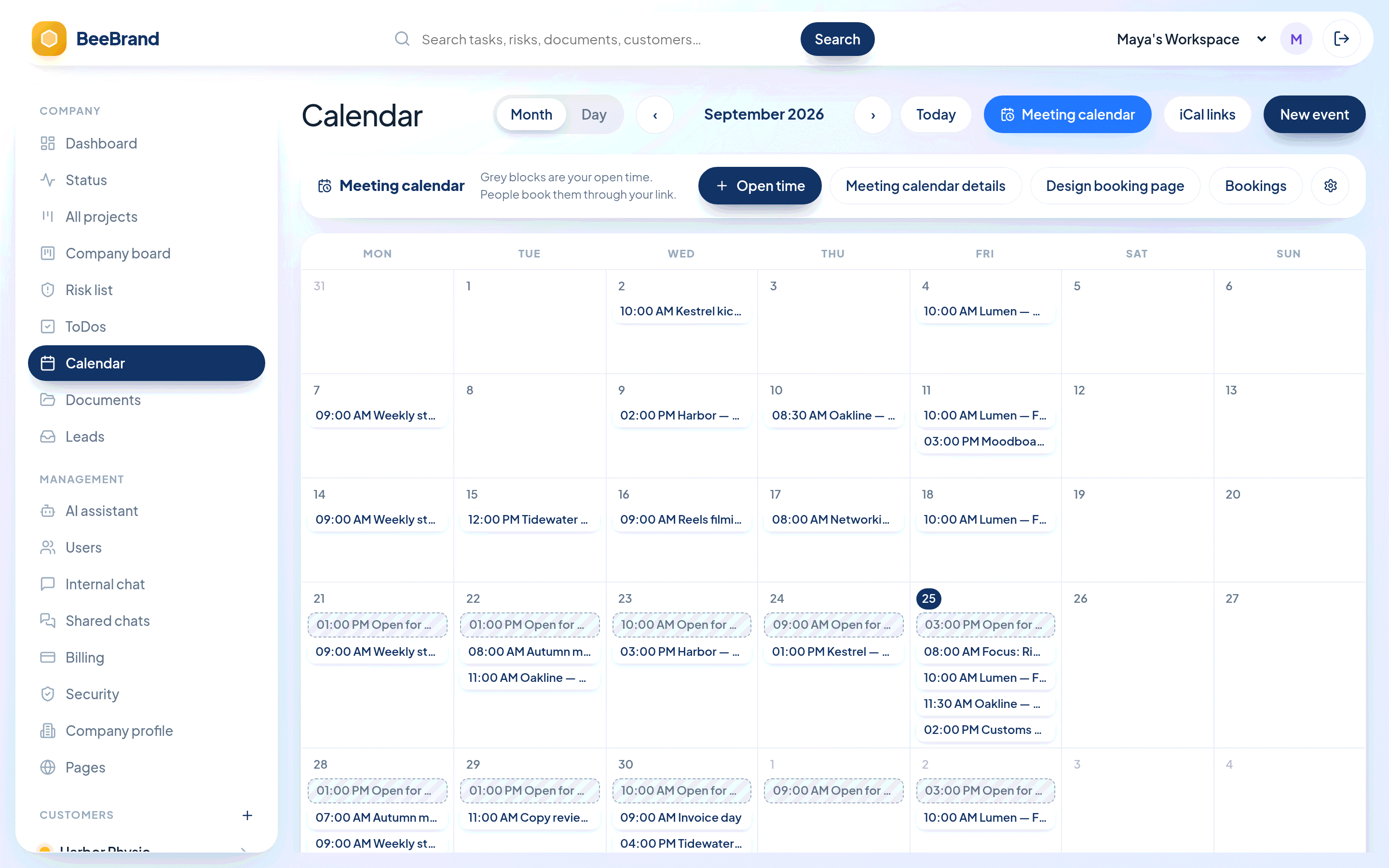
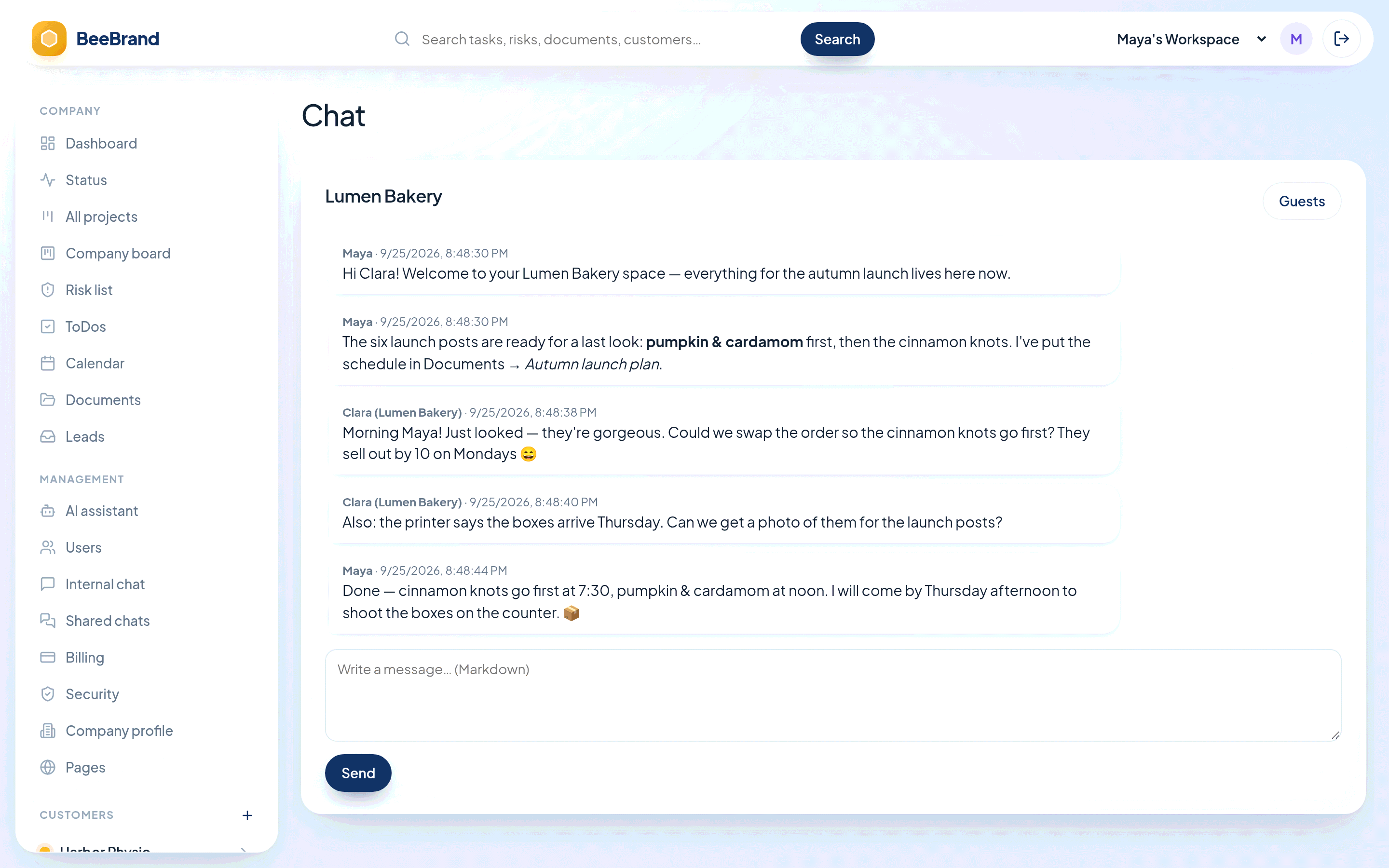
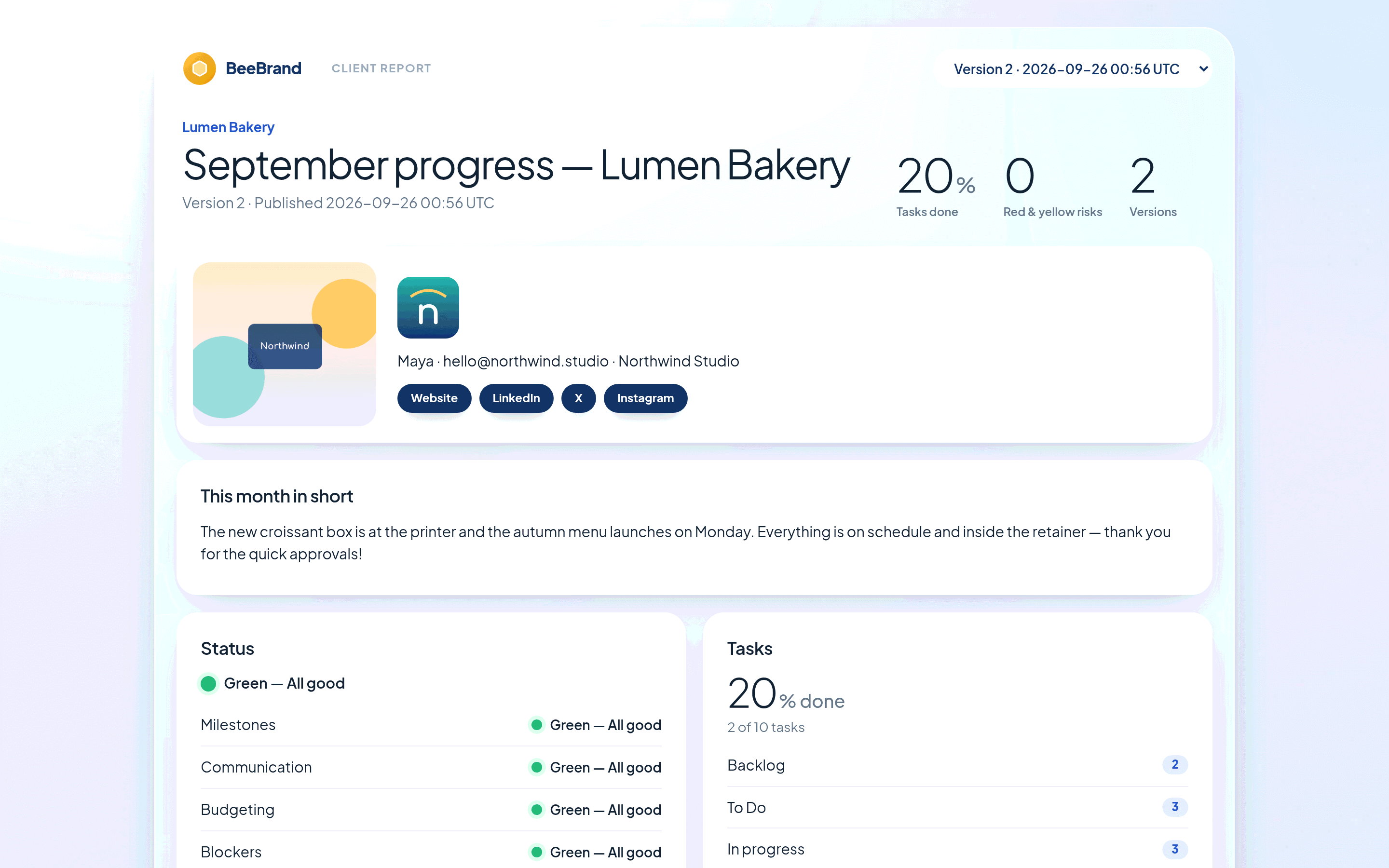
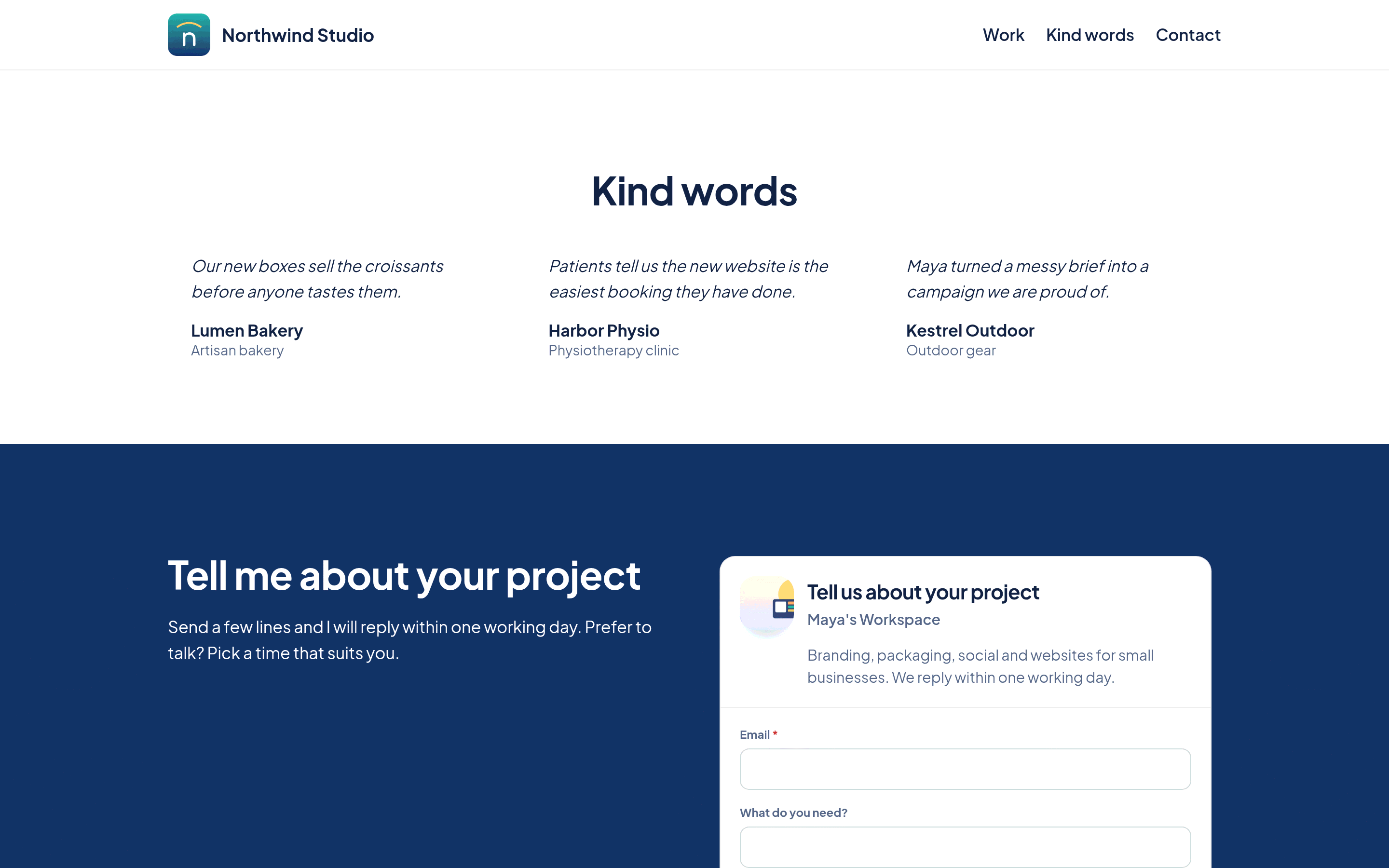
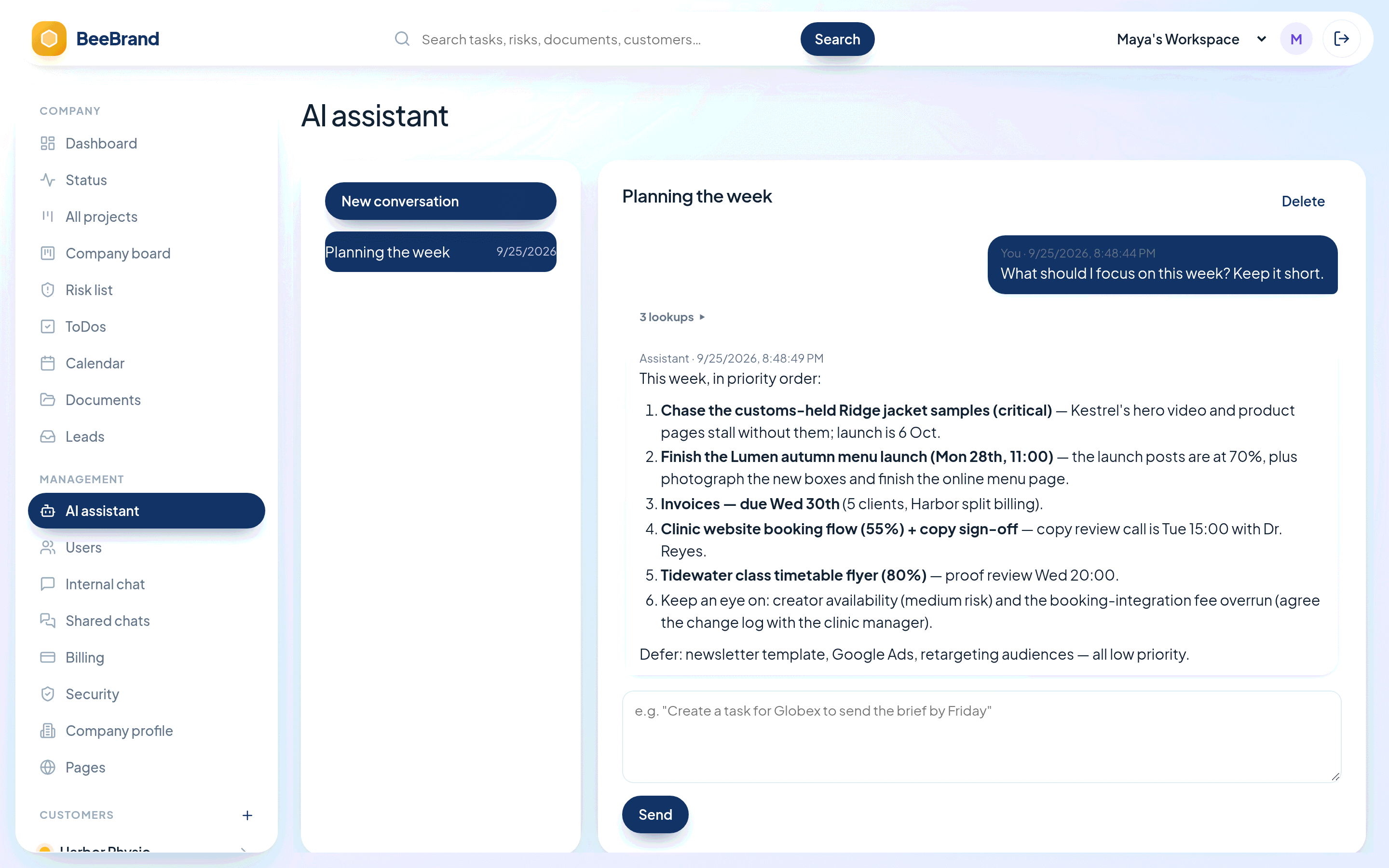
Dashboard — every client rolled up, with leads and an AI summaryProject board — a board per client with due dates, progress and keywordsStatus — six traffic lights per client, with a timeline of past statusesAI analysis — an analysis and dated next steps, one click from tasksLeads — every enquiry researched and rated by AICalendar — your events and the open time clients can bookClient chat — the client joins their own chat as a guestClient report — a published progress page the client keepsYour page — your own page with testimonials and the lead formAI assistant — ask what matters this week — it reads your workspace
Recipes from real kinds of work
Seven ways to run your work on BeeBrand
Composite stories — freelancers, a small school and a volunteer parent group: what each one uses, how, and which plan fits.
AnaCareer coach
From a Linktree and a notebook to a coaching practice that runs itself between sessions.
Ana left HR to coach people through career changes. Her first clients came from LinkedIn, her notes lived in a paper notebook, and every discovery call cost three emails to schedule.
Where AI helps. After a session she writes two lines into a status section and presses Analyze with AI. The suggested next steps become dated homework tasks with one click.
Clients arrive at the first call already booked, briefed and in the calendar. Ana spends her evenings on the coaching, not the admin.
Starts on Free with her first two clients. Moves to Flex at $2 per client when the group programme fills up.
The recipe
Booking pageMarks Tuesday and Thursday afternoons "open for booking" and shares one link for a free 30-minute intro call. Her Zoom link goes out the moment someone books.
A page of her ownBuilds an "About my coaching" page with testimonials and her lead form for the group programme — in the Pastel theme, in an evening.
A space per clientEach coachee gets their own status (goals as milestones, a communication light), a small board for homework, and a folder of worksheets.
Client chatInvites each client into their own chat — they see that conversation and nothing else of her business.
Report pagesOnce a month she publishes a progress page: the header with her logo, the goals section, finished tasks. The client keeps the link and sees every past version.
LeoBrand & graphic designer
A portfolio that qualifies briefs, and revision rounds that stay in one place.
Leo freelances in brand identity. Briefs arrived through Instagram DMs, final files through WeTransfer, and "which version did we approve?" through a very long email thread.
Where AI helps. The dashboard summary tells him, in one paragraph, which client is waiting on him and which one he is waiting on.
Clients get a clean report page with his logo instead of a status email. Leo gets his weekends back.
Free while he builds the portfolio, Flex as briefs come in, Studio once he takes on a junior.
The recipe
Portfolio pageAn image carousel of past work, a testimonials block and a short MP4 of a logo animation — published under his own name on pages.beebrand.us.
Lead form with his questionsAsks for budget range, deadline and brand stage. The form takes his page's colours and fonts, so it looks like part of the portfolio.
Lead researchEvery brief arrives with a short summary of the company behind it and a viability rating, so he answers the right ones first.
Board per clientDeliverables move Backlog → To do → In progress → Done, tagged with keywords like logo, packaging, social. Revisions are comments on the task, with the files attached.
Documents and share linksFinal files live in the client's folders and go out as revocable links — no more expiring transfers.
Risks"Scope creep on the packaging" goes into the risk register; Suggest with AI proposes how to handle it before it becomes a problem.
SaraAds & media manager
Eight clients, eight budgets, one Monday morning list.
Sara runs paid social for small brands. Every client had a different spreadsheet, a different reporting day and a different way of asking "how are the ads doing?".
Where AI helps. The company dashboard's AI summary reads all eight clients and says which two need her today.
Her own marketing runs on BeeBrand too: a landing page with her Pixel and Analytics IDs, the lead form's funnel and AI-rated leads.
Flex from the start at $2 per client. Past ten clients she moves to Studio.
The recipe
Status lightsBudgeting is yellow when a client's spend pacing looks off, red when it's over. The worst light rolls up, so nothing red hides behind a green.
All projectsEvery client's tasks in one Eisenhower list on Monday: urgent and important first, grouped by quadrant or by client.
Keywords and filterTasks tagged meta, google, tiktok, creative — one filter shows every creative refresh due this week across all clients.
CalendarRepeating reporting days per client, subscribed into her phone through an iCal link.
BookmarksEach client's ad dashboards and landing pages saved next to their board, one click away.
Monthly report pagesStatus lights, the AI summary and task progress on one page, published as a new version each month. Clients see the history and the progress chart.
Tomas builds web apps for small companies. His clients don't read Jira, don't want to — and still ask every Friday where things are.
Where AI helps. He pastes his call notes into the AI assistant, asks for tasks, and they appear on the board.
Clients trust the process because they can see it — and their data sits in its own database file, with 2FA and hardware keys on the door.
Free for his first two clients. Studio once he and two partners serve up to twenty-five.
The recipe
Backlog boardFeatures and bugs on the client's board with due dates, progress and idle-days, so a stuck ticket is visible before the client notices.
Company boardHis own admin — invoices, the tax filing, a new laptop — on a board of its own, next to the client work.
DocumentsSpecs, contracts and meeting notes in each client's folders, attached to the tasks that need them.
Client chatThe client's product owner joins as a guest; questions and answers stay next to the project, with threads and markdown for code snippets.
Status + risksBlockers light up red; the weekly report page replaces the Friday status email.
Booking pageDiscovery calls for new projects, booked straight into free slots of his calendar.
NadiaInterior designer
Every client treated like the only client — with everything in one place.
Nadia designs homes and small cafés. Her work is personal, her clients are nervous about budgets, and she used to keep each project across a notes app, a mood-board folder, WhatsApp and her memory.
Where AI helps. Her dashboard's AI summary tells her each morning which client is waiting on a decision and which install is at risk.
Clients feel looked after because they can always see where their home is. Nadia sees every project live on her dashboard — and her evenings stay hers.
Free for her first two homes, Flex as referrals grow, Studio when she brings in an assistant.
The recipe
Portfolio pageBefore-and-after carousels, a short walkthrough video and testimonials from past clients, published under her own name with the Creative theme.
Lead formAsks for the room, the rough budget and the move-in date. Every enquiry arrives with AI research on who sent it, so she knows which ones to call back first.
Intro callsHer booking page offers a free 30-minute intro call. The call lands in her calendar with her Zoom link; afterwards she creates the client's space and invites them into their chat.
A space per clientEach home gets its own board with every step from measuring to install, its own folders of mood boards and quotes, and bookmarks to the suppliers she is ordering from.
Status and risksShe turns Budgeting yellow the day a quote comes in high, and the client sees why on the next report. A supplier delay goes into the risk register, with Suggest with AI proposing how to keep the install date.
Report pagesAfter each milestone she publishes a new version of the client's progress page. Their link always shows the latest, with every earlier version one click away.
Client chatFabric choices, a photo from the site, a quick yes on the tiles — in the client's own chat instead of her personal phone.
ElifLanguage school owner
A school run from its own company board — no client spaces needed.
Elif runs a small language school with four teachers. She doesn't have "clients" in the agency sense — she has courses, a timetable, a waiting list and a steady trickle of enquiries.
Where AI helps. After the teachers' meeting she pastes her notes into the AI assistant and asks for tasks — each one lands on the board with a due date.
Enquiries no longer sit in three inboxes. Every one is answered, every course is planned in one place, and the teachers always know the timetable.
She uses no client spaces, so the client limit never touches her — her plan is about people. Free for her and two teachers, Studio when the team grows past three, Agency when it passes ten.
The recipe
Company boardEverything the school does lives on the company's own board: the autumn term, textbook orders, the new evening B1 course. Keywords like spanish, german, kids and corporate make one filter show a whole department.
To-dosHer personal checklist for the small things — call the landlord, renew the printer lease, reply to the parents' question.
CalendarThe timetable as repeating events, shared with the teachers, who subscribe to it on their phones through an iCal link.
A page that brings studentsCourse pages with the schedule and prices, and her lead form asking for the language, level and preferred times.
LeadsEnquiries from companies get AI research on who they are and whether the group course fits; each good one becomes a task for her or a to-do with one click.
Booking pageProspective students book a free 20-minute placement chat straight into the open time she marks in the school calendar.
TeamTeachers join by an invitation link, talk in internal channels and keep lesson materials in the company's documents.
Oak Hill PTOParent Teacher Organization
A volunteer board that plans in the ten minutes a busy parent has.
Oak Hill's PTO is six parents with jobs, kids and no office. Planning used to happen in a group chat that nobody could search, with the fundraising spreadsheet on one parent's laptop.
Where AI helps. Before a meeting the president asks the AI assistant what is overdue and what is coming up this month — and the agenda writes itself.
When the board changes in September, the new parents inherit a plan, a calendar and every document — not a group chat.
Free on the Non-profit plan once the PTO's 501(c) paperwork is verified: up to 15 people, and seats rotate as representatives come and go each school year.
The recipe
Project boardThe year's work on one board: the next general meeting, the fall festival, the spring fundraiser, teacher-appreciation week — each task with an owner, a due date and progress.
A space per eventThe big events get their own space — the Fall Festival, the Book Fair — with their own board, documents, status and chat, so the volunteers on one don't wade through the other.
Documents linked to tasksMeeting minutes, the budget, flyers and permission slips live in folders and are attached to the tasks that need them. Nothing is lost when a parent changes phones.
An information board for parentsA public page for all families: upcoming dates, what the fundraiser pays for, and a sign-up form for volunteers. Parents don't need an account to read it.
Quick check-insRepresentatives hop on from their phones between school pick-up and dinner. Changes show up live for everyone, and the channel keeps the discussion next to the plan.
CalendarMeetings and events as a shared calendar that every representative subscribes to in the calendar app they already use.
StatusThe treasurer turns the fundraiser's budgeting light yellow when pledges fall behind, so the whole board sees it before the event, not after.
New to running a business?
Start your business with us — from the first idea to the first client.
We take the hard part, so you can do the creative part.
Our goal is to make your new business grow and succeed.
You don't need an office, an assistant or a pile of apps to start. Most people start with an idea, a laptop and one first client. Here is the simple path, and where BeeBrand helps along the way.
Choose a name you like and say in one sentence what you do and for whom.
With BeeBrand: Put your name, logo and links on your company profile — they appear on your pages and reports.
Register your LLC with your state
In most states you can do it online on the state's website. The fee depends on your state.
With BeeBrand: Keep your registration papers safe in your company's documents.
Get your EIN — it's free
An EIN is your business's tax number. You can get it free on the IRS website.
With BeeBrand: Save it in the same folder, so everything official is in one place.
Open a business bank account
Keep your business money apart from your personal money. It makes taxes much easier.
With BeeBrand: Add yearly deadlines — like your state's annual report, if it has one — to your calendar, so nothing sneaks up on you.
Get your page online
People need to find you and know how to reach you.
With BeeBrand: Build your page by drag and drop, add your lead form and a booking link. No code, no designer needed.
Welcome your first client
This is the exciting part — and the part you are good at.
With BeeBrand: Give them their own space: a board for the work, a chat, shared files and a status they can see.
BeeBrand doesn't register companies or give legal or tax advice. Fees and rules are different in every state — check your state's official website, and talk to an accountant if you are not sure.
The BeeBrand Hive
You don't have to start alone.
Have an idea and no roadmap? The Hive takes you from "maybe I could do this" to your first paying client — one small step a day, next to people doing the same.
1
Bee-ginner
You have an idea. We help you check it's a business.
Free
2
Worker
Your first client pays you.
Free → Flex
3
Honeymaker
Steady clients, steady income.
Studio
4
Queen
Your own team, your own studio.
Agency
Founding
Your Hive
Join a small group of people starting their business at the same time. Chat, share wins, ask questions — no calls needed. Every Hive has a name, so you always know where you belong.
Accountants, lawyers, ads experts and founders who've been there — organized by profession, closest to you first. Message them right inside BeeBrand. Every Beekeeper offers a free intro session and shows their hourly rate up front. You pay them directly — we don't take a cut.
One paying customer in 30 days. A small step each day, a checklist, templates, and a page ready in an evening.
No get-rich promises. Transparent prices. You pay for help only when you ask for it.
AI that does the admin
An assistant for the parts of client work nobody enjoys
Built into the screens you already use — not a separate chatbot you have to brief from scratch.
Dashboard summary
The whole situation of a client — or your whole company — in one readable paragraph.
Analyze with AI
On any status section: an analysis and concrete next steps, each one click from a dated task.
Suggest with AI
Possible solutions for a risk, before it turns into a problem.
Lead research
Who is writing to you, what their company does, and whether they are worth your time.
Lead conversion
A good lead turned into a clear task or to-do, written for you.
AI assistant
A chat that works inside your workspace with your permissions: it lists and creates clients, tasks, events and risks.
Everything the AI writes is a suggestion you see and edit. What visitors and leads type is treated as data, never as instructions — and your content is not used to train models.
Everything included
All of it, on every plan
Every core feature is in every plan — Free included. Plans differ in people, storage and clients; Agency and Scale add team extras.
Win clients
PagesDrag-and-drop pages with six themes, custom CSS/JS, Analytics and Pixel IDs, under your own address.
Page analyticsViews, visitors, time, scroll depth and the lead-form funnel. No cookies, no stored IPs.
Lead formYour own questions, a public link and an embed code; it takes your page's look and sizes itself.
Booking pageFree slots from your calendar, no clashes, Add to Google Calendar, .ics and your Zoom link.
Run the work
Client spacesDashboard, status, board, risks, calendar, documents, chat, reports and bookmarks per client.
BoardsKanban or an Eisenhower list, keywords and a filter, due dates, progress, comments and files.
All projectsEvery client's work in one priority list — plus a board for your own company.
Calendar & to-dosMonth and day views, repeating events, iCal links for any calendar app; a quick personal checklist.
DocumentsFolders per client, preview, and share links you can revoke.
Chat & searchTeam channels, DMs, a guest chat per client — and one search across everything.
Keep clients informed
Status lightsSix sections per client, the worst colour on top, and a timeline of every past status.
Risk registerSeverity, status, possible solutions and the one you picked.
DashboardsPer client and company-wide, with PDF and Word export.
Report pagesWidgets, your logo and contacts, published versions with history and a progress chart.
Team and trust
Sign-inGoogle sign-in, authenticator-app 2FA, hardware security keys and recovery codes.
TeamInvite by link, roles for owner, admin and member, switch between organizations.
Separated dataEach company's data in its own database file — separated, not just filtered.
EverywhereLive updates without refreshing, and it works on your phone. No ads, no data selling.
One place instead of seven
The starter stack, folded into one
What starting out usually looks like — and where the same job lives in BeeBrand.
The job
Usually
In BeeBrand
A website
A site builder subscription
Pages with themes and analytics
Enquiries
A form tool, and guessing who is worth answering
A lead form with AI research
Discovery calls
A scheduling tool
A booking page on your own calendar
Planning the work
A task app built for software teams
Boards per client, one priority list
Talking to clients
Email threads and DMs
A guest chat per client
Sending files
Expiring transfer links
Client folders and revocable links
Reporting
A slide deck every month
Report pages with history
Pricing that grows with you
Pay for where your business is — not where it might be
Free while you find your first clients, two dollars per client while things pick up, a fixed price once you are established. Change plan in Billing as your business changes.
Stage 1
Just starting
Your first clients, maybe your first month on your own.
Free
2 clients
2 GB storage
Up to 3 people
Everything in the product, free, for as long as you like. No card.
Every plan includes every core feature; Agency and Scale add team extras. Seats rotate: remove someone and their seat is free for someone else. Flex covers up to ten clients — at eleven, Studio is the next step.
Questions
Before you start
Is Free really free?
Yes. Two clients, 2 GB and three people, with every feature — pages, lead form, booking, AI, reports. No card, no trial clock.
What happens when I outgrow it?
Switch to Flex and pay $2 a month per client, up to ten clients. Past ten, move to Studio, then Agency or Scale as your team grows.
Can one client see another client's work?
No. Clients you invite join their own chat and see nothing else, and your whole company's data lives in its own database file.
What does the AI do with my data?
It uses what it needs to answer — a client's status, a lead's message — and nothing is used to train models. Everything it writes is a suggestion you can edit.
I'm a non-profit. Can I use it?
Yes: NGOs and 501(c) organizations get the non-profit plan free, once we have seen your documents.
Your first client deserves a real workspace. So do you.
Sign in with Google and you're in — free for up to 2 clients, for as long as you like.